ORQUIZ · EVERYONE CAN PLAY

A quiz on screen.
Everyone in the game.

One printed card per player. No phones. No clickers.

Choose an answer, rotate your card and hold it up. The host scans the cards with a camera, and OrQuiz identifies each player and their answer.

No player phonesNo clickersReusable cards
Choose how to scan
Illustration only — these cards are not for printing.

Voting cards bring everyone together

01

Phone-free classrooms

Turn revision or a classroom activity into a quiz where every student answers. With a computer camera, even the teacher can run the activity without a phone. OrQuiz is listed in Israel’s Digital Content program; contact us for purchasing details.

02

Families of all ages

Children and adults can join the same quiz, whether or not they own a phone. Ideal for a birthday, family gathering or an evening together.

03

Communities and religious families

A shared activity without smartphones in players’ hands. Display the quiz, distribute cards and scan. A computer camera lets you keep phones out of the activity entirely.

How do voting cards work?

1Choose

Read the question and answer options on the shared screen.

2Rotate and raise

Rotate your card so the letter of your chosen answer is at the top. Use the letters shown on your printed cards.

3Scan

The camera recognizes each card and its orientation, recording the player’s name and answer.

You need a computer to run OrQuiz, a screen everyone can see, printed cards and a camera on the computer or an external phone. Cards work with multiple-choice and picture questions that ask players to choose one answer. Offline operation requires a special purchase arranged with our team.

Prepare your voting cards

Start in the quiz editor, then open the game’s launch screen. The illustrations have been translated for this guide; labels may vary with your interface language. Use the code shown in your own game.

1

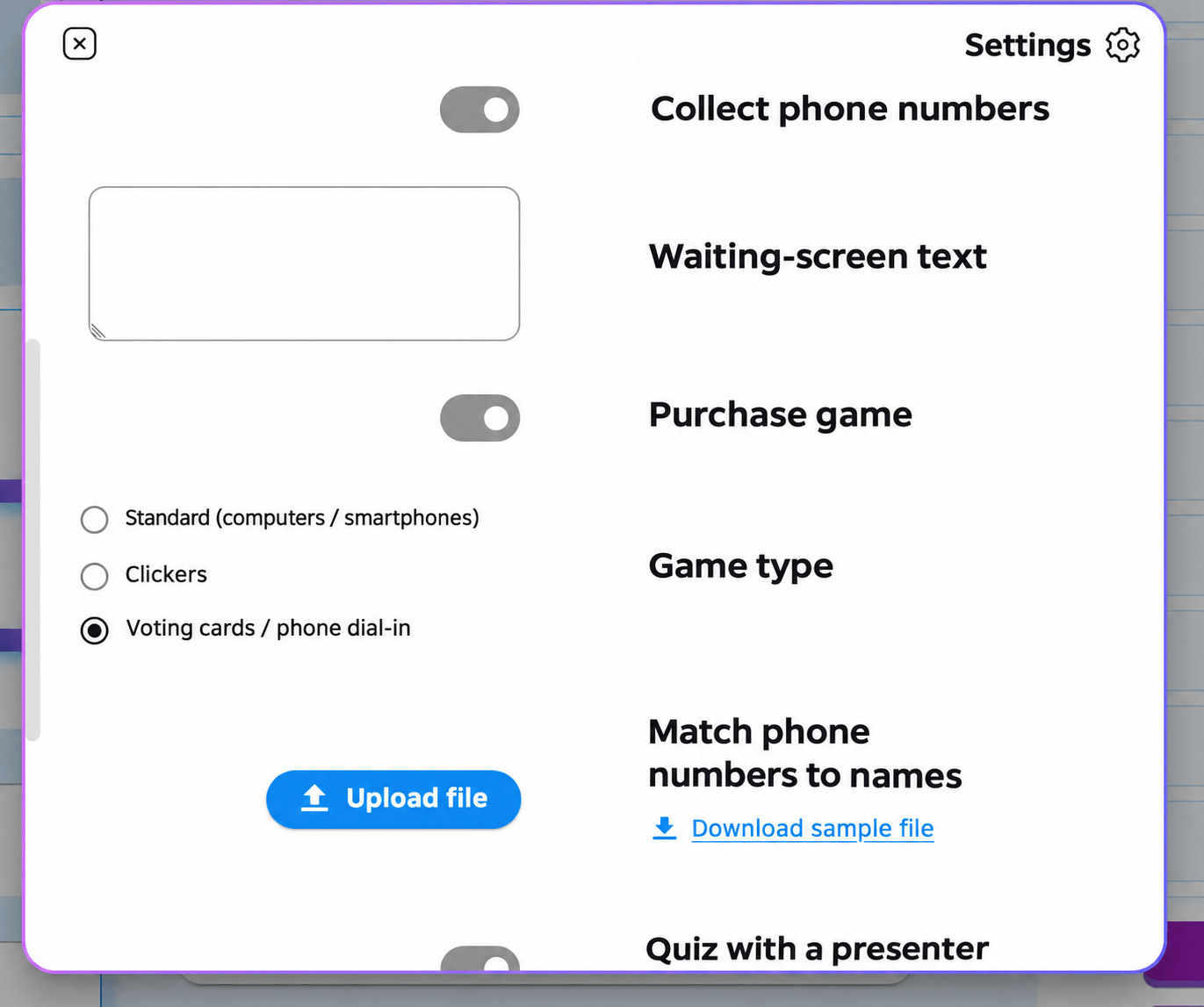
Enable voting cards

In the quiz editor, open Settings. Under Game type, select Voting cards / phone dial-in, then save. This enables the voting-card option on the game’s launch screen.

Enable voting cards
2

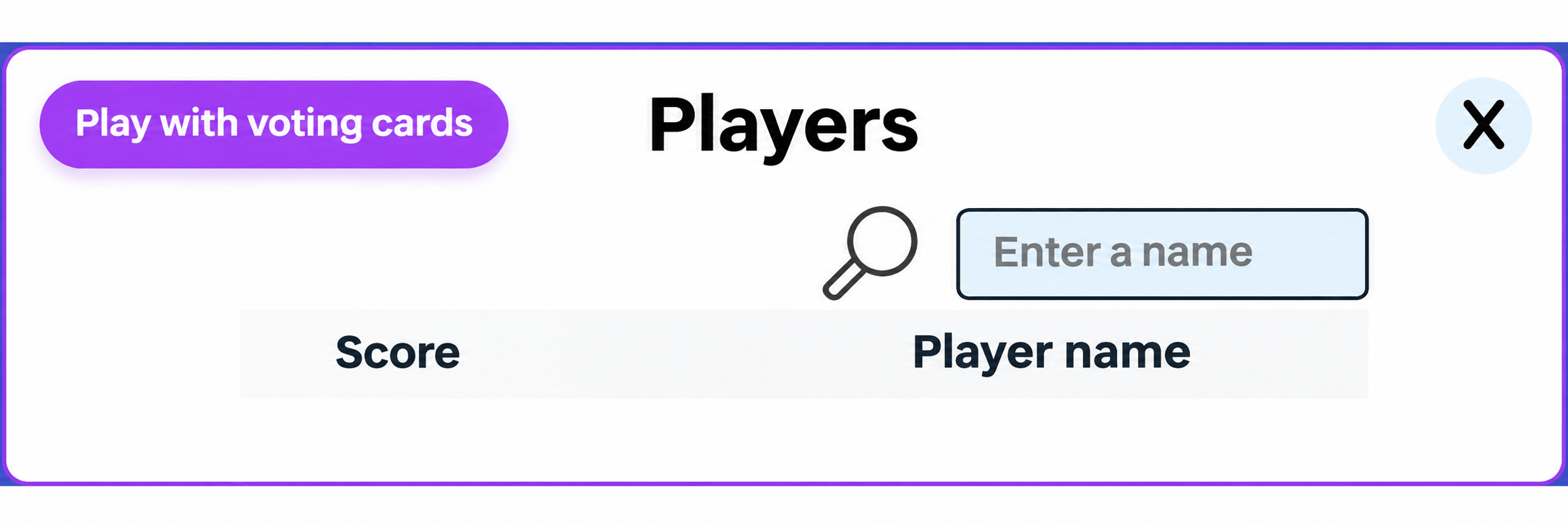
Open the players menu

Click the players icon in the upper-left corner of the game screen. In the window that opens, choose Play with voting cards — the purple button at the top.

Open the players menu
3

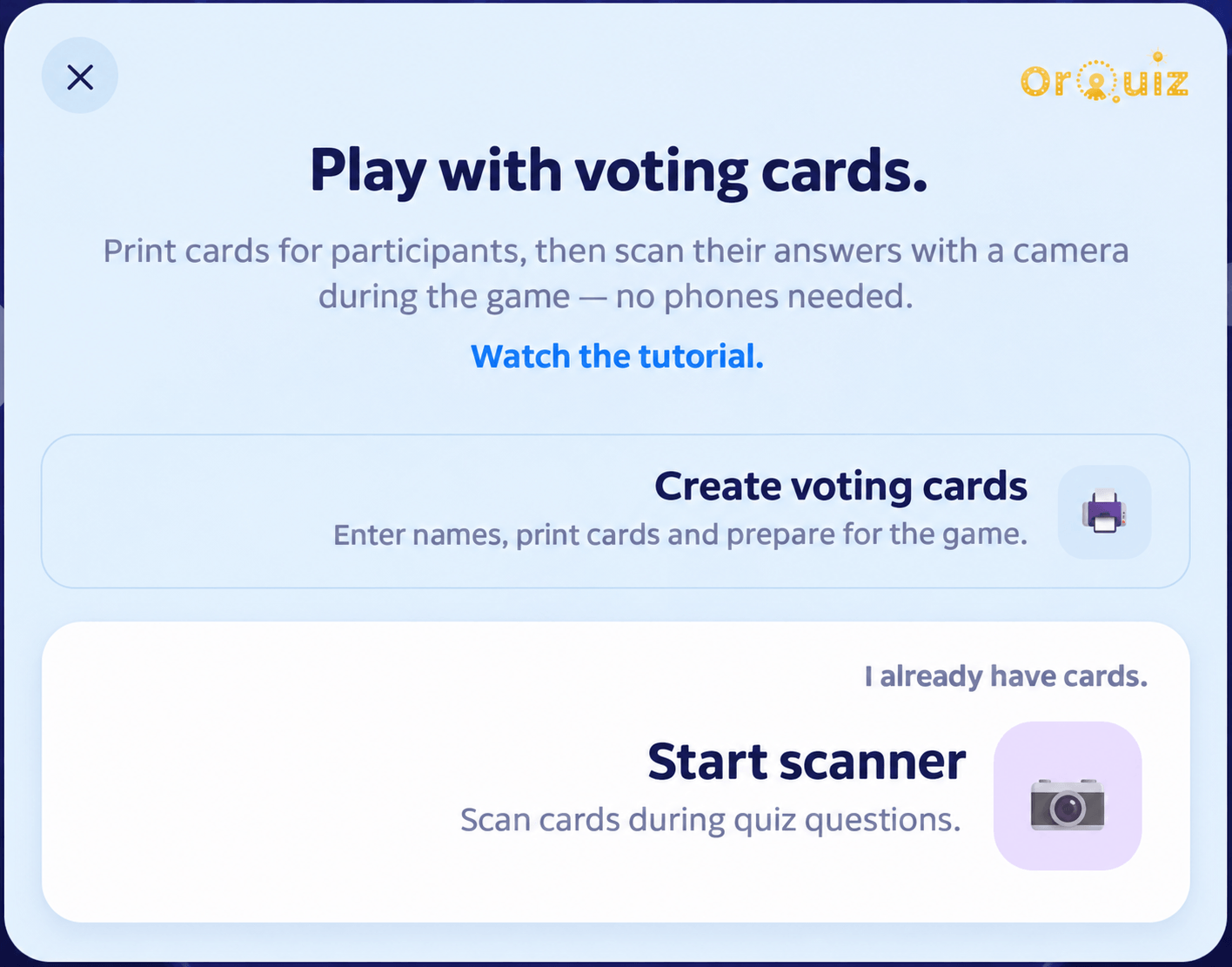
Create the cards

Choose Create voting cards. Use Start scanner only when your cards are ready. Open the card page from your own game so the correct game code is used.

Create the cards
4

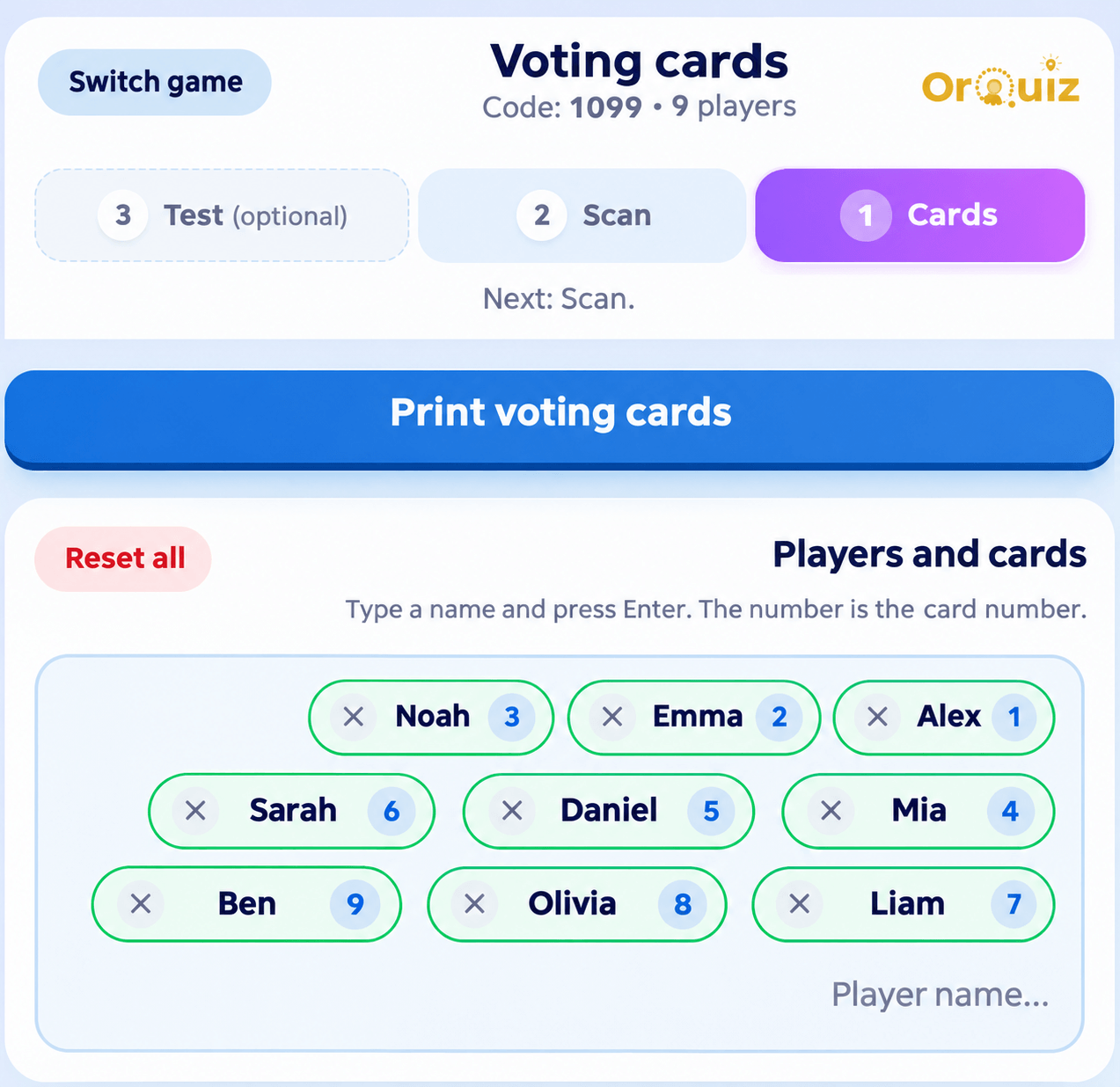
Add names and assign cards

Type a player’s name and press Enter. Repeat for the group. The number next to each name is their card number. Players added here also appear in the game. Give each person the card matching their name or number.

Add names and assign cards
5

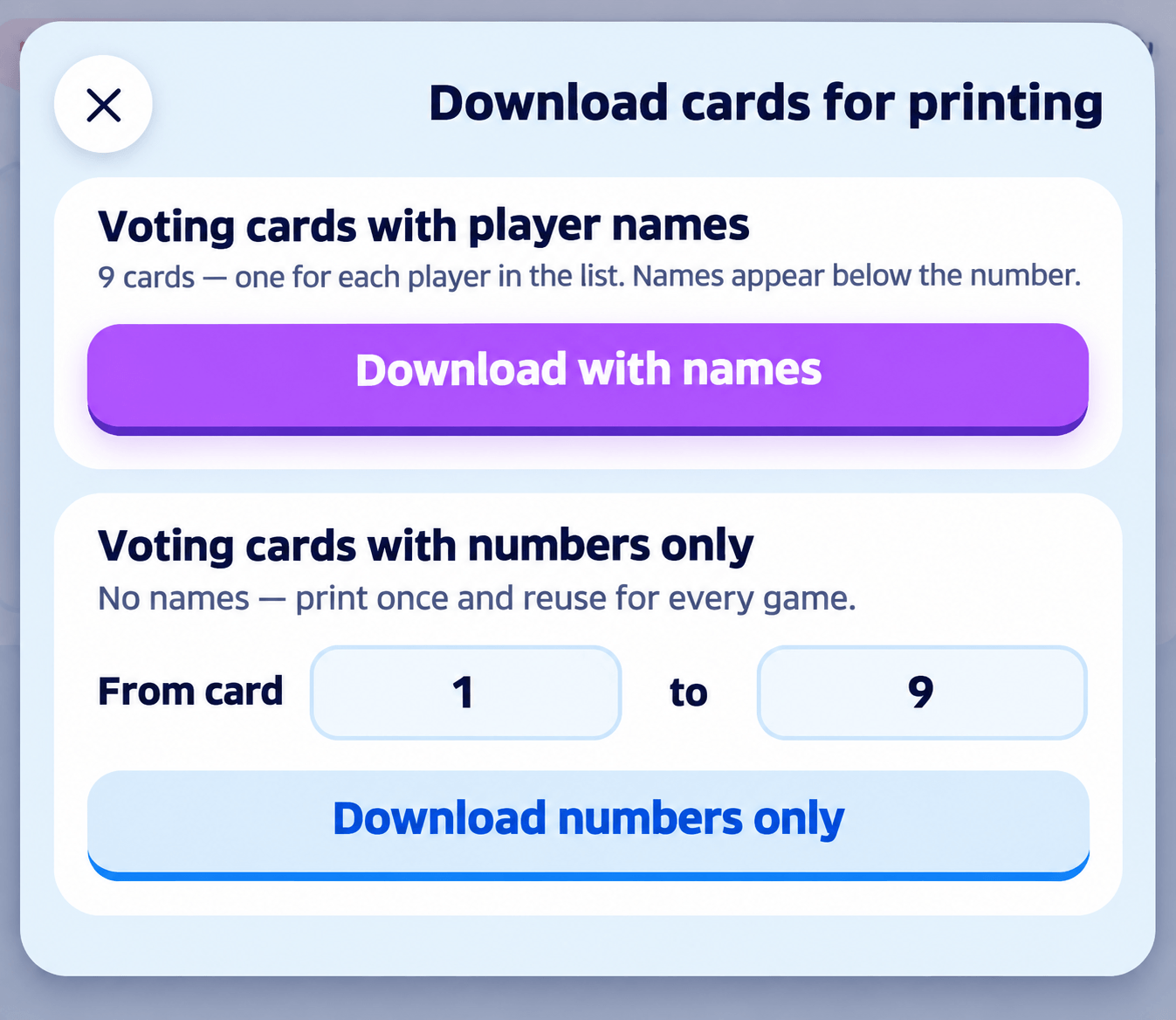
Download the PDF and print

Choose Print voting cards. Download cards with names, or choose a number range for a reusable numbered set. Print the PDF and separate the cards so everyone has their own. You can print hundreds, laminate them, or order printed cards from us. Keep each student’s card assignment consistent.

Download the PDF and print

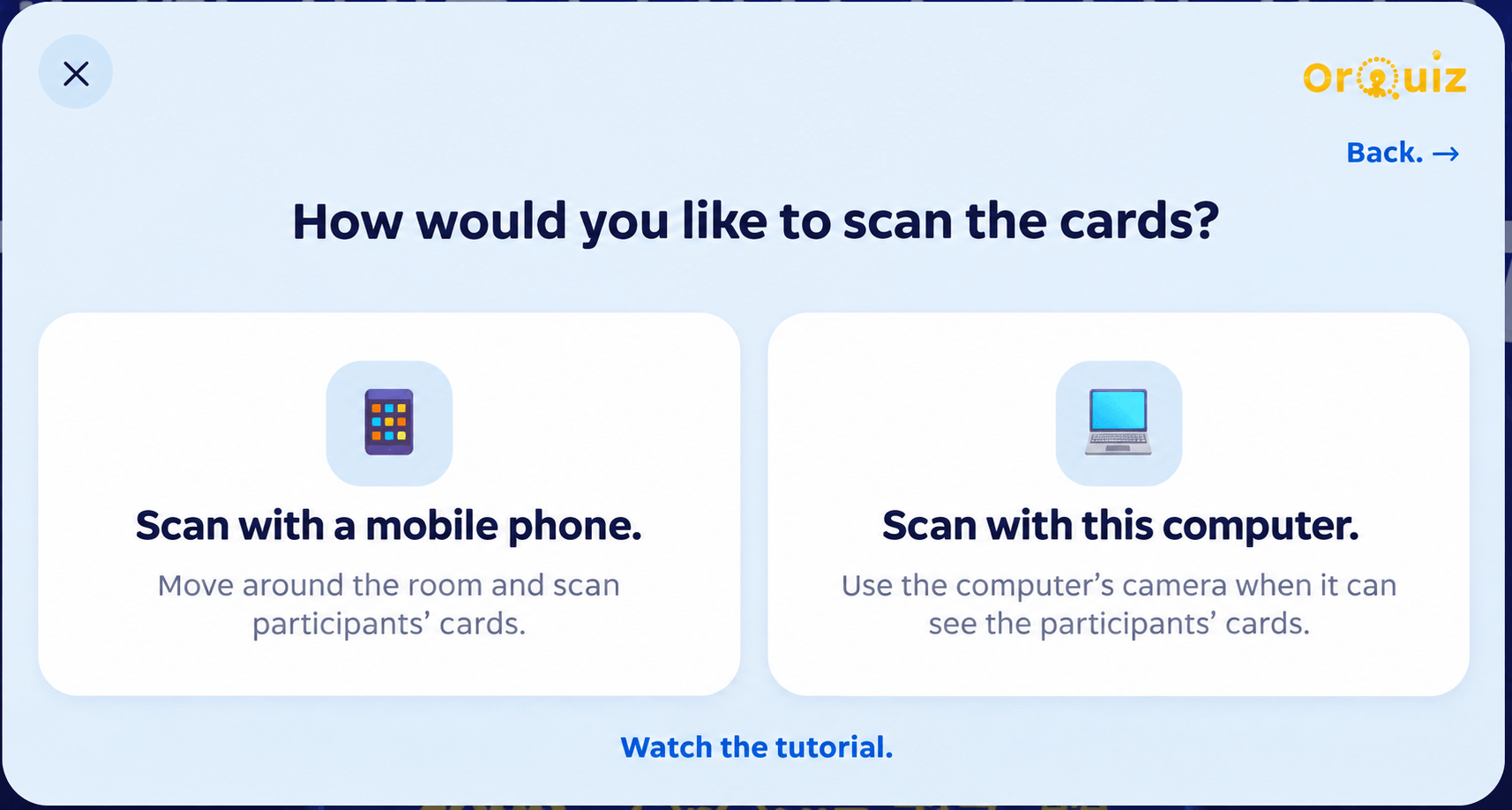
Choose how to scan

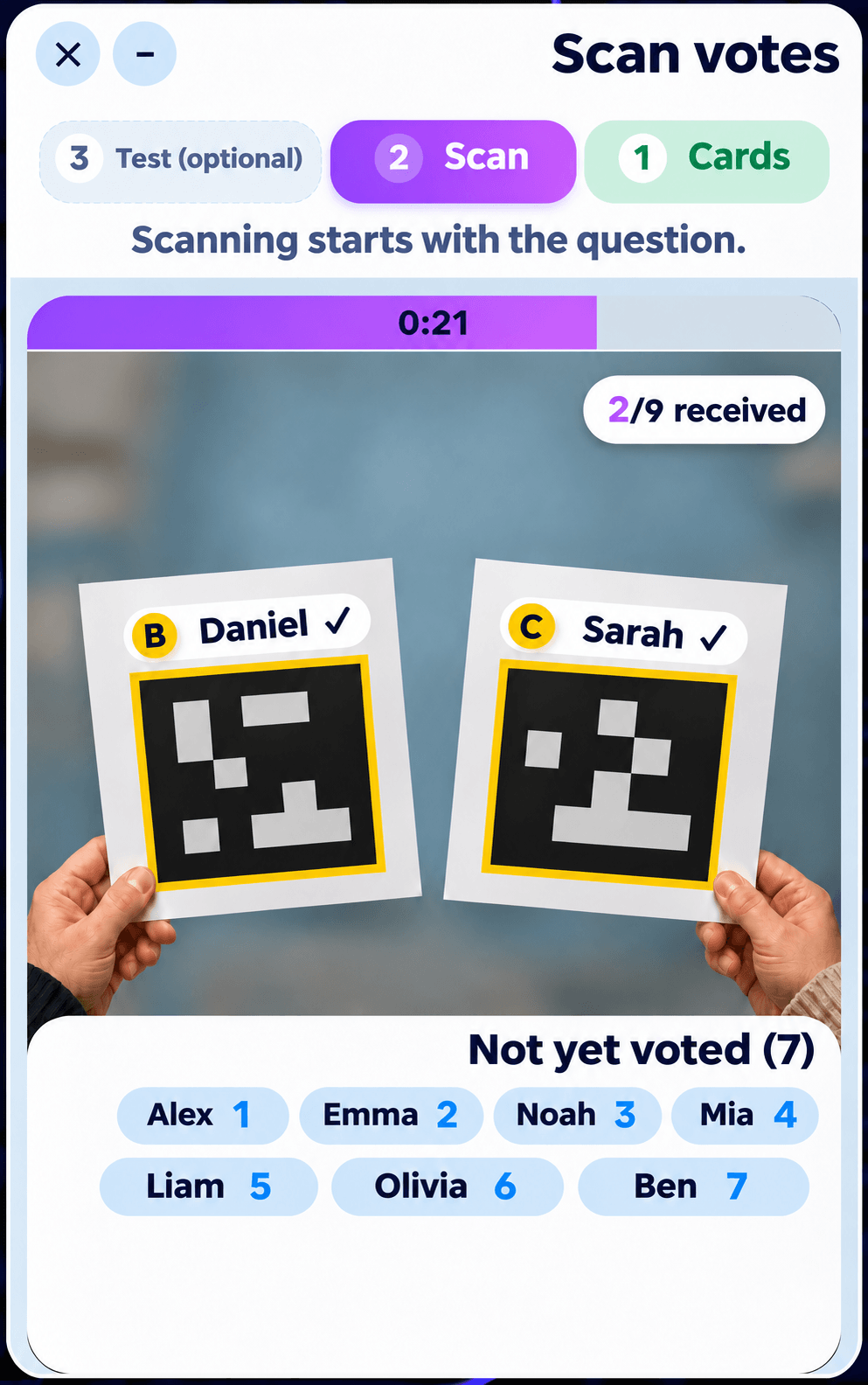
Return to Play with voting cards, select Start scanner and choose which camera will capture the answers.

Choose how to scan

Scan with the computer camera

Select I will scan using this computer. Allow camera access when prompted. The scanner opens beside the game and waits for a question. When the timer starts, point the camera at the raised cards. The scanner shows who has answered and who is still waiting.

Scan with the computer camera

Scan with an external phone

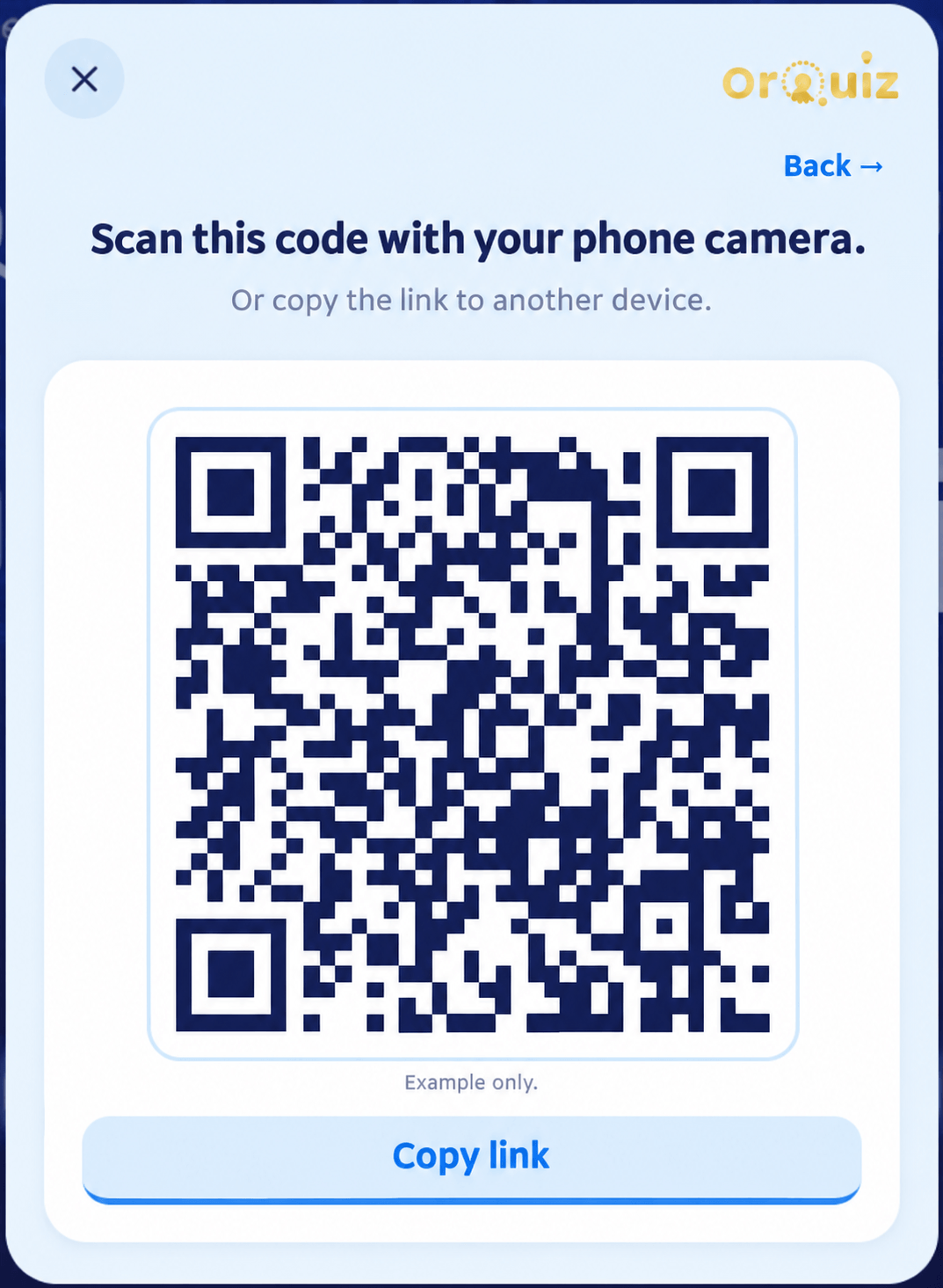
Select I will scan using a mobile phone. Scan the QR code displayed by your game, or copy the scanner link and send it to the scanning device. Open the link, allow camera access and choose the Scan tab. Scan cards while the question timer is running. To use several scanners, open the same game’s scanner link on additional devices. The QR code in the screenshot is only an example.

Scan with an external phone
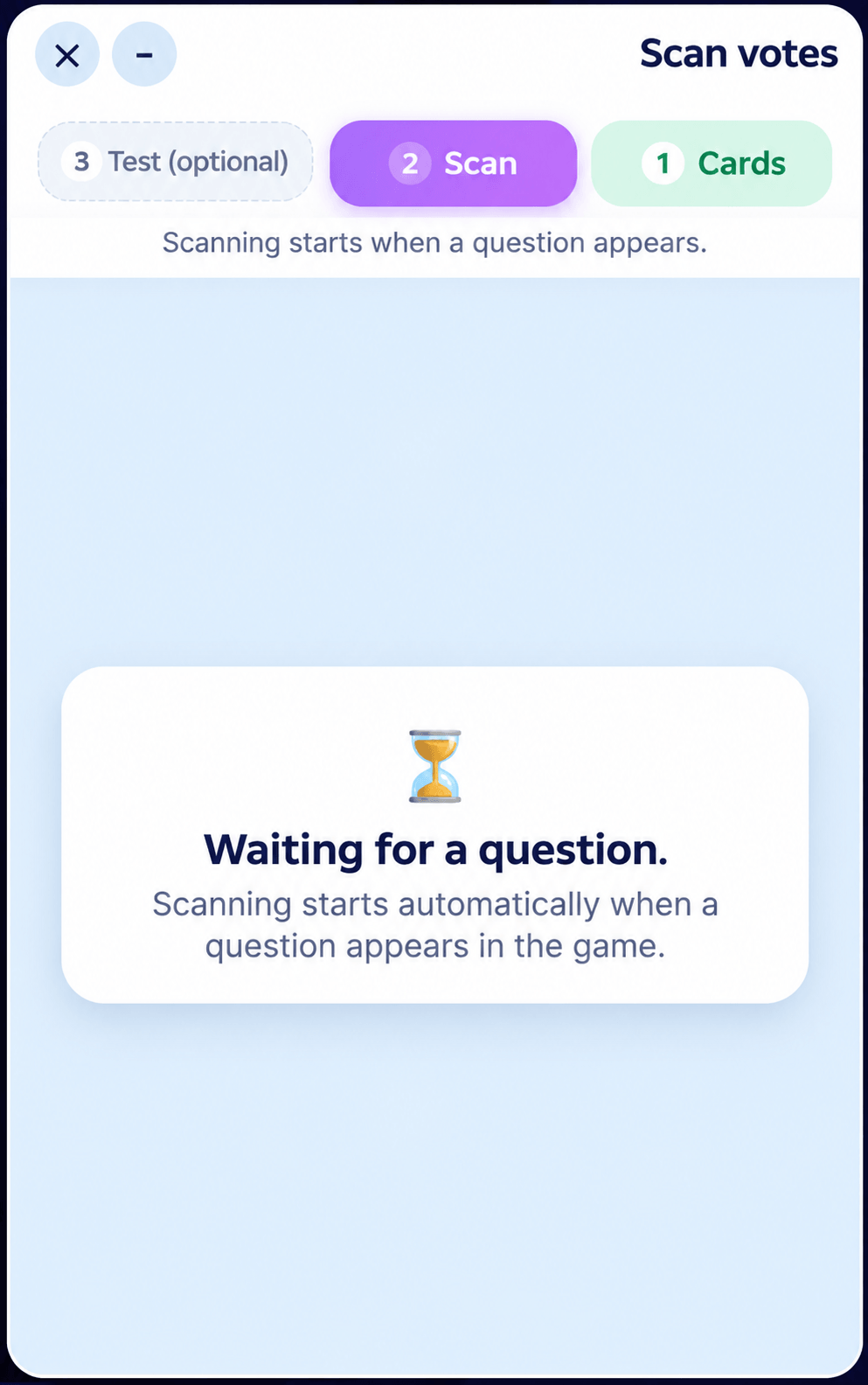
The timer is the voting windowScanning starts when the question timer begins and continues until the final second. Allow enough time to read the question and scan everyone’s card.

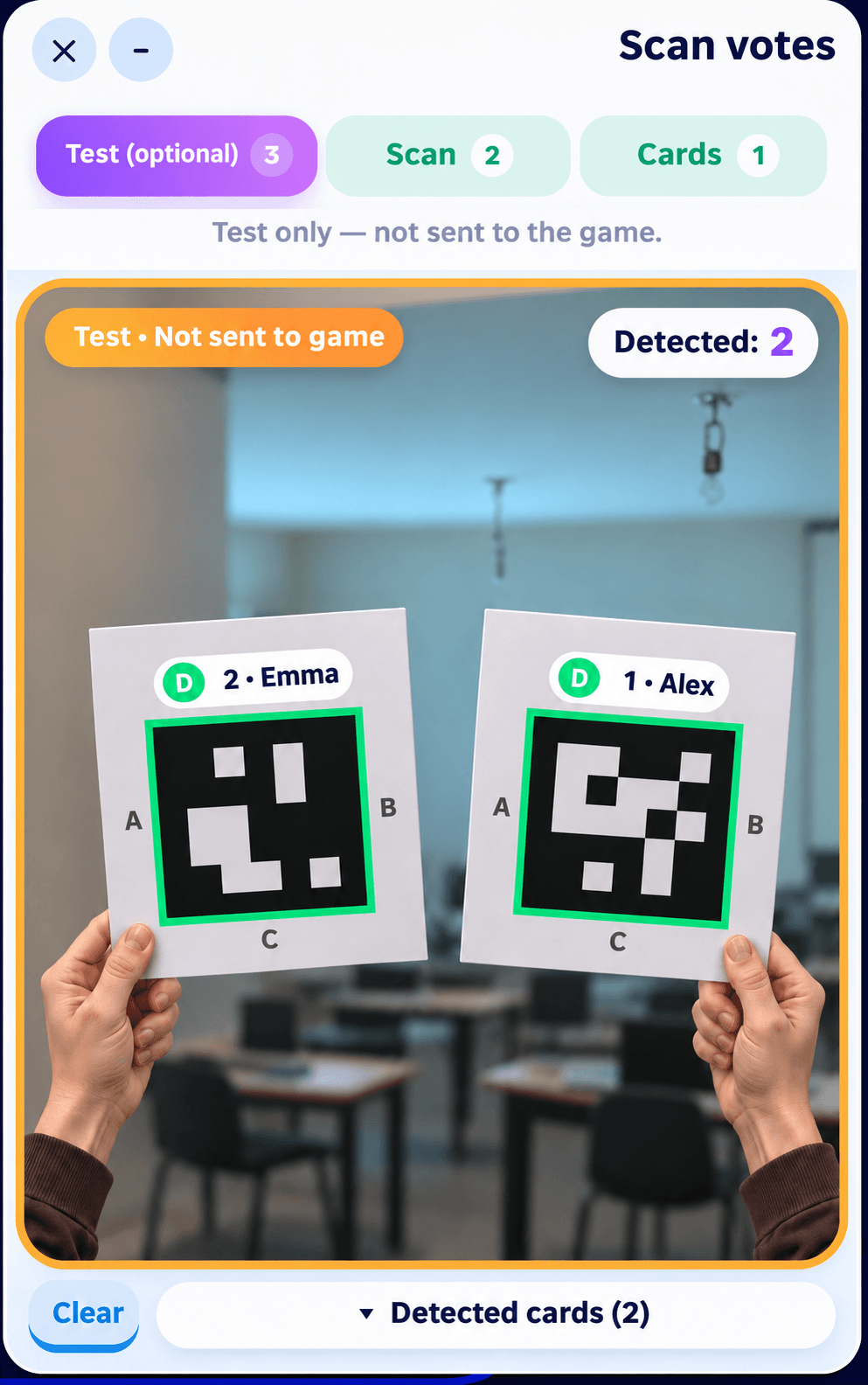
Run a quick test first

Open Test (optional), raise a few cards and check the recognized names and answers. Rotate a card and verify that the answer changes. Test votes are not sent to the game. Return to Scan before playing.

Run a quick test first

Before your first question

  • Everyone has the correct personal card.
  • The chosen answer letter is at the top.
  • The whole marker is visible and fingers do not cover it.
  • Lighting is good and the camera recognizes the cards.
  • Testing is complete and the Scan tab is selected.
  • The question timer leaves enough time to scan everyone.

A year of quizzes — including offline play

Schools can contact us to arrange a package of 5–8 ready-made quizzes for activities throughout the school year. Depending on the agreed package, delivery can be on a USB drive or as a computer executable. Offline play is a special purchase, not automatically included in standard operation. Quiz selection, language, price and setup are agreed with our team in advance.

Contact the OrQuiz team

Questions and answers

Do players need phones or clickers?

No. Players use printed cards. The host needs a computer and a camera; a computer camera means the host does not need a phone either.

Who is it for?

Schools, families of different ages, community groups and religious families looking for a shared quiz without player smartphones.

Which questions work with cards?

Multiple-choice, picture questions and other questions with one answer chosen from the displayed options. Typing and other non-choice interactions are not supported by cards.

How are players linked to cards?

Add names in Create voting cards. Each name has a card number. Distribute the matching card to each player.

Do I need to print new cards for every quiz?

No. Numbered sets can be reused. Ensure the player-to-card-number assignment is correct in each game.

When are answers recorded?

From the moment the question timer starts until its final second. The scanner shows received answers and players who have not yet voted.

Does a test vote count in the game?

No. The Test tab checks recognition only. Return to Scan for live play.

Can several phones scan at once?

Yes. Open the scanner link for the same game on each external device. Players still answer using cards.

Can I play without internet?

Offline play is available through a special purchase arranged with OrQuiz. Contact us in advance for setup and purchase details.

What if a card is not recognized?

Check lighting, camera permission and that the entire card is visible. Keep fingers away from the marker, hold it steady and try the Test tab first.

Can I print hundreds of cards and keep them for students?

Yes. You can print and laminate a personal set for repeated use. Keep the same student-to-card assignment.

Can I buy printed cards?

Yes. Contact OrQuiz to order printed cards for your class or group.

Is OrQuiz listed in Israel’s Digital Content program?

Yes. Contact our team for school purchasing and operation details.

Is a yearly offline quiz package available?

Contact us to arrange 5–8 ready-made quizzes, supplied as agreed on a USB drive or as a computer executable. Content, language, pricing and setup are confirmed in advance.

Your class. Your family. Everyone can join.

Create a quiz, print the cards and invite everyone to play.

Enter your username and password to register your account


  • The password must have a minimum strength of Medium
    Strength indicator

Enter your username and password to log into your account